Fotoğraftan flashcard
Not fotoğrafını düzenlenebilir flashcard'lara dönüştürme
Sayfayı iyi ışıkta ve düz biçimde çekin, taramanın odaklanacağı konuyu belirtin, oluşturulan kartları kaynağınızla karşılaştırın ve ancak sonra destenize ekleyin.
21 Temmuz 2026'da gözden geçirildi
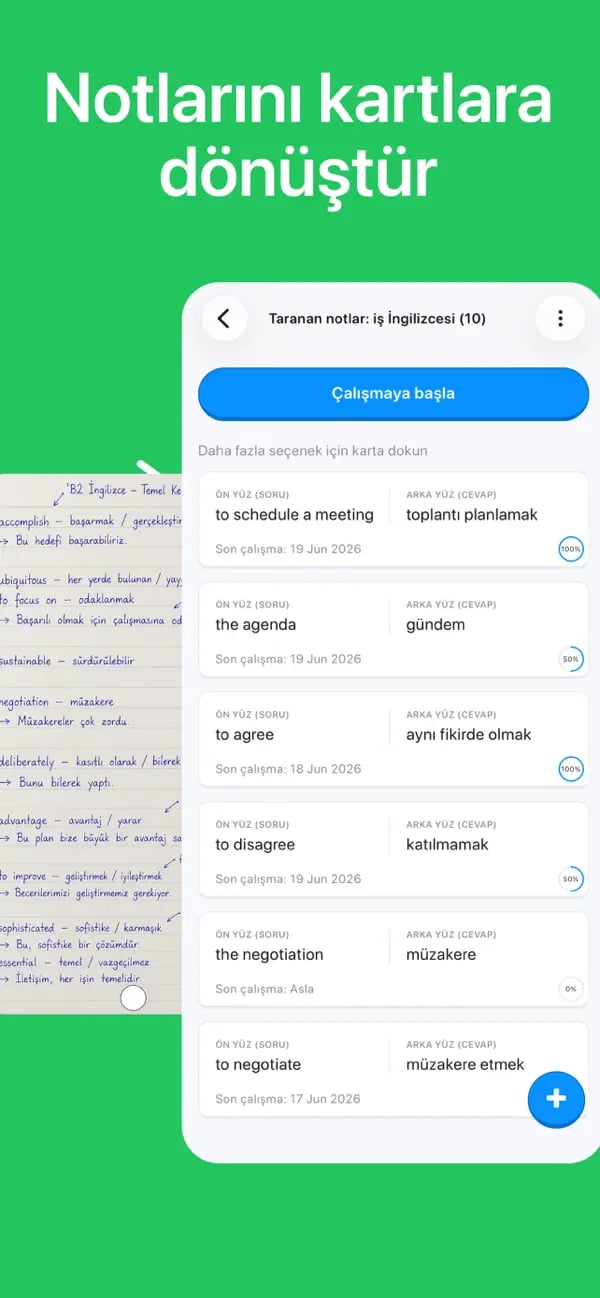
Kısa cevap
Sayfayı düz bir yüzeye yerleştirin, parlak ve eşit ışıkta fotoğrafını çekin, ilgili tüm yazıları çerçevenin içinde tutun ve gölgelerden kaçının. Tarayıcıdan ihtiyacınız olan terim veya fikirlere odaklanmasını isteyin. Oluşturulan desteyi düzenlenebilir bir taslak olarak değerlendirin ve el yazısı veya bağlam hatalarını düzeltin.
Net bir not fotoğrafından güvenilir kartlara
- 1
Okunabilir bir sayfa hazırlayın
Kıvrımları düzleştirin, ilgisiz sayfaları kaldırın ve soluk kalem veya küçük açıklamaları mümkün olduğunca görünür hale getirin.
- 2
Bozulma olmadan yakalayın
Telefonu sayfaya paralel tutun, çerçeveyi doldurun, kamerayı odaklayın ve elinizin veya cihazınızın gölgesini uzak tutun.
- 3
İsimleri ve sembolleri kontrol edin
Oluşturulan her terimi, sayıyı, aksanı, formülü ve kısaltmayı kaydetmeden önce fotoğrafla karşılaştırın.
Sayfanın okunmasını kolaylaştırın
Optik karakter tanıma, metin güçlü kontrasta ve tutarlı aralığa sahip olduğunda en iyi sonucu verir. Açık renkli bir sayfadaki koyu mürekkep, soluk kalemle fotoğraf çekmekten daha kolaydır ve doğrudan fotoğraflanan bir sayfa, keskin bir açıyla çekilen bir sayfadan daha kolaydır. Dizüstü bilgisayar ciltlemeye yakın bir yerde kıvrılıyorsa, düz olan yarısını ayrı olarak tarayın.
Dikkatinizi materyalden uzaklaştırdıklarında masaları, parmakları ve bitişik sayfaları kırpın. Yoğun notlar için iki yakın fotoğraf, tek bir uzak fotoğraftan daha güvenilir olabilir. Amaç güzel bir fotoğraf değil; okunaklı kaynak materyaldir.
Jeneratöre neyin önemli olduğunu söyleyin
Bir sayfada başlıklar, örnekler, hatırlatıcılar ve tamamlanmamış düşünceler bulunabilir. Anahtar kelimelere odaklanmak, iki süreci karşılaştırmak veya numaralı adımları test etmek gibi kısa bir talimat, oluşturulan kartların hedefinize uymasına yardımcı olur.
Sayfanın yalnızca bir kısmına ihtiyacınız olduğunda daha dar bir odak kullanın. Bu, ilgisiz kartları azaltır ve size daha küçük bir tekrar seti sunar. Taramada birden fazla konu karışıyorsa, bunları ayrı ayrı yakalayın, böylece deste organizasyonu daha sonra yararlı olur.
- Konuyu ve test edilmesini istediğiniz bilgi türünü adlandırın.
- İki dilli notlar için hedef dili belirtin.
- Farklı bölümler farklı istemlere ihtiyaç duyduğunda sayfaları bölün.
Önce riskli ayrıntıları gözden geçirin
Özel isimler, tarihler, ondalık sayılar, kimyasal semboller, matematiksel gösterimler ve dil aksanları en yakın kontrolü hak ediyor. Tek bir karakter cevabı değiştirebilir ve yapay zekâ, olağandışı bir kısaltmayı yanlış kelimeye dönüştürerek güvenle normalleştirebilir.
Düzenleme sırasında orijinal görüntüyü açık tutun. Notlarda bir cümle belirsizse, oluşturucunun eksik bağlamı tahmin etmesini istemek yerine, doğrulayabileceğiniz gerçeği etrafında kartı yeniden yazın.
Fotoğraftan flashcard
Memko'daki notları tarayın
Tarama akışı bir sayfayı yakalamanıza, odak belirlemenize, sonucu gözden geçirmenize ve kartları yeni veya mevcut desteye eklemenize olanak tanır.
- 1
Notları tara'yı seçin ve bir fotoğraf çekin veya mevcut bir görüntüyü seçin.
- 2
Tanımlar, iş İspanyolcası ifadeler veya bir süreçteki adımlar gibi bir odak noktası ekleyin.
- 3
Kartları resimle karşılaştırın, hataları düzenleyin, kaydedin ve kısa bir alıştırma oturumu başlatın.
Fotoğraf tarama soruları
Kartlarda sorun gidermeden önce kaynağı iyileştirin.
Öğrenmeye devam et
Kaynaklar ve daha fazla okuma
Bugünün notlarını yarın da hatırlayacağınız bilgiye dönüştürün
Bir deste oluşturun, kişisel planınızı izleyin ve önemli konuları her gün kısa tekrarlarla pekiştirin.
iOS ve Android için ücretsiz indirin